

Custom Objects Explained: A No-Code Guide for Admins
Picture two sites. One logs a parking bay with a water leak as "14 leak". The other logs the same kind of fault as "B14 dmg??". When head office asks which, bays are out of use across every site, you spend an afternoon stitching spreadsheets together.
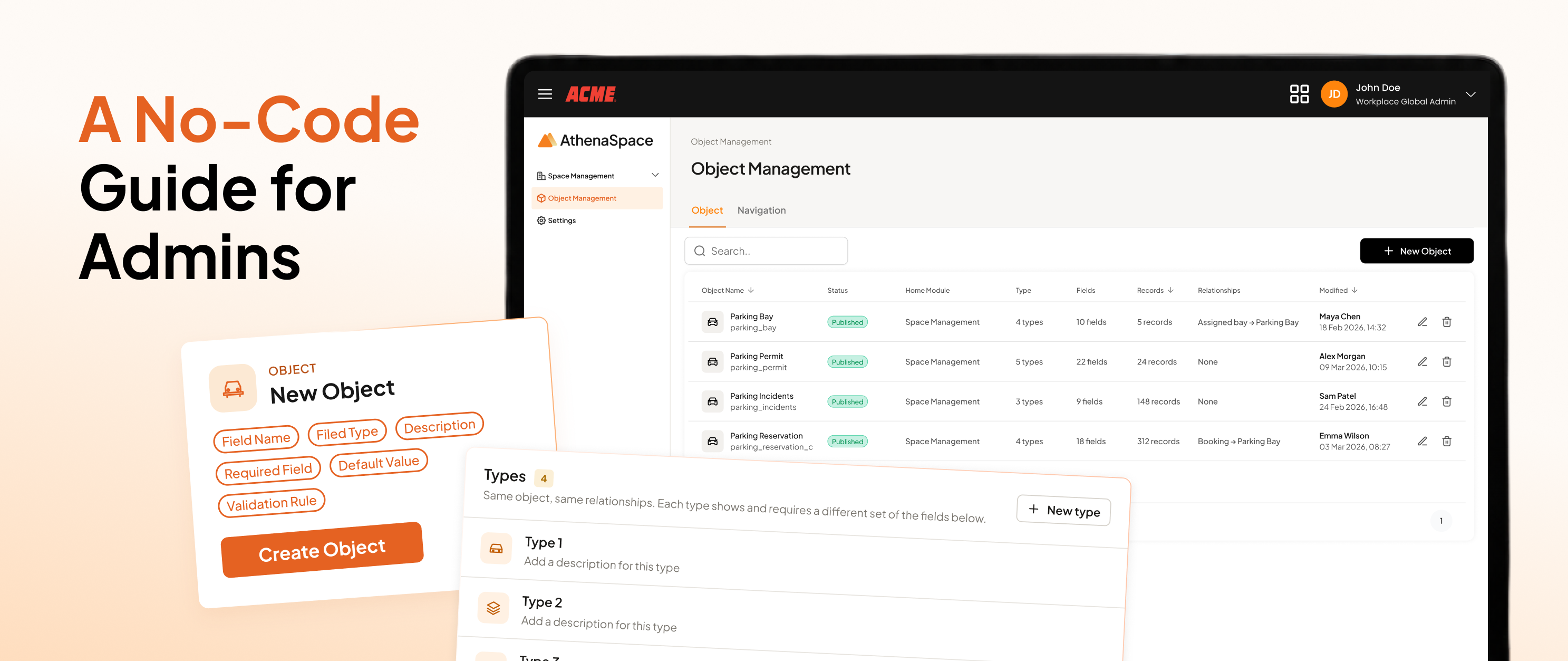
A custom object fixes that at the source. It is a form you design once and every site fills in the same way, so each entry is complete and consistent when it is saved. AthenaSpace Object Manager, part of the AthenaSpace platform, lets you build one in the browser, with no code. This guide shows you how, step by step.
What is a custom object?
A custom object is a form that an admin designs once, with its own fields, types and validation rules. Every time someone fills it in, the result is a record, such as a parking bay, a contractor pass or a maintenance request. In AthenaSpace, Global Admins build them in Object Manager, in the browser, with no code. Some teams call this a custom form or a no-code data model.
If you know custom objects from a CRM, this is the same idea applied to spaces and operations: your own records, with your own fields, for the things your team actually manages.
What are the benefits of a custom object?
A custom object gives every site one form, refuses bad entries before they are saved, and lets you change the form yourself. You get records you can trust, compare and link, without waiting for IT or a new module. Here is what changes.
Object, field, type and record: what is the difference?
An object is the form design, a field is one question on it, a type is a variant of the form, and a record is one filled-in form.
- Object: the whole form, such as Parking Bay.
- Field: one question on it, such as Repair status.
- Type: a variant, such as Standard or EV charging.
- Record: one filled-in form, such as one bay.
How does one custom object work across many sites?
You design the object once and choose whether it is available at all Sites or only selected ones. Every record belongs to one Site, picked at the top of the form. Site Admins see and edit only their assigned Sites, while Global Admins see every Site, so each site keeps its own records on one shared form.
- New Sites are covered automatically. "All Sites" includes Sites you add later, so a new location logs records the same way from day one.
- Lists show one site or all of them. Search by title and filter by Type and Site, so a local view and a wider view use the same records.
Who can do what?
Permissions vary based on the modules in your subscription.
In AthenaSM, Workplace Global Admins can build and publish objects, manage records, and access all sites. Workplace Site Admins can manage records only for their assigned sites.
In AthenaSignage, Signage Global Admins and Signage Site Admins follow the same permissions model. Signage Designers can manage signage-specific records, while Signage Support Admins have view-only access.
How do you build a custom object, step by step?
You build a custom object in six steps: create it, add fields, shape it with types and sections, add validation rules, choose its Sites, then publish and place it. Everything happens in the browser. The steps below build a Parking Bay object, so you can follow along with a list of your own.
Sketch it first: turn spreadsheet columns into fields
Open the spreadsheet you use today and decide what each column becomes. Here is how the Parking Bay columns map to field formats.
Prefer numbering that fills itself in? An Auto number field, such as BAY-{0000}, is assigned when you save and is never reused.
1. Create the object
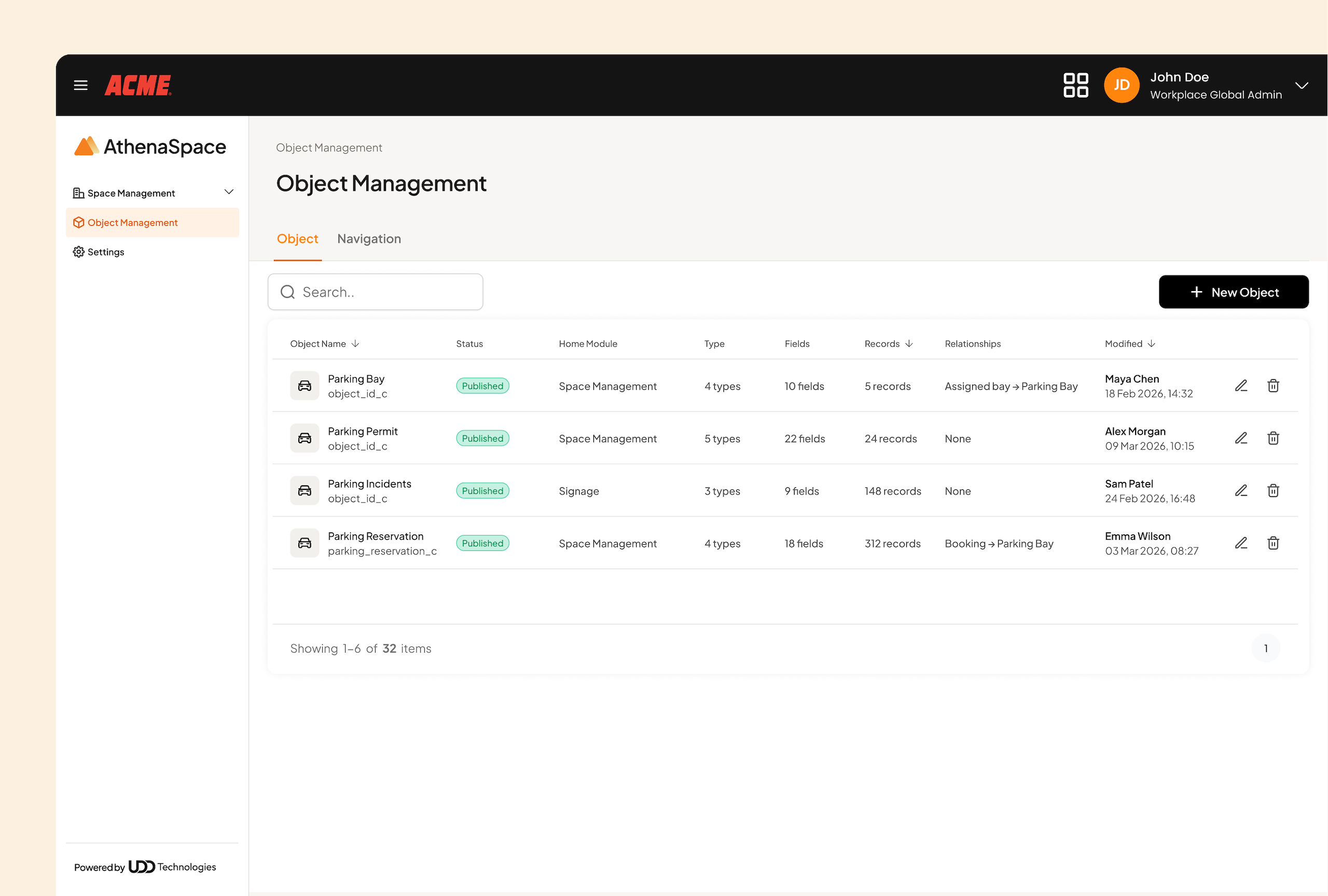
Give it a name and description, choose its home module, Space Management or AthenaSignage, and pick an icon. New objects start as a draft, so nothing reaches your team until you are ready.

2. Add fields
Choose what the form asks for from twelve field formats: Text, Paragraph, Number, Single Choice, Multiple Choice, Date, Time, Person, Yes/No, Rating, Relation and Auto number. Mark one Text or Auto number field as the record title so every record is easy to find.

3. Shape it with types and sections
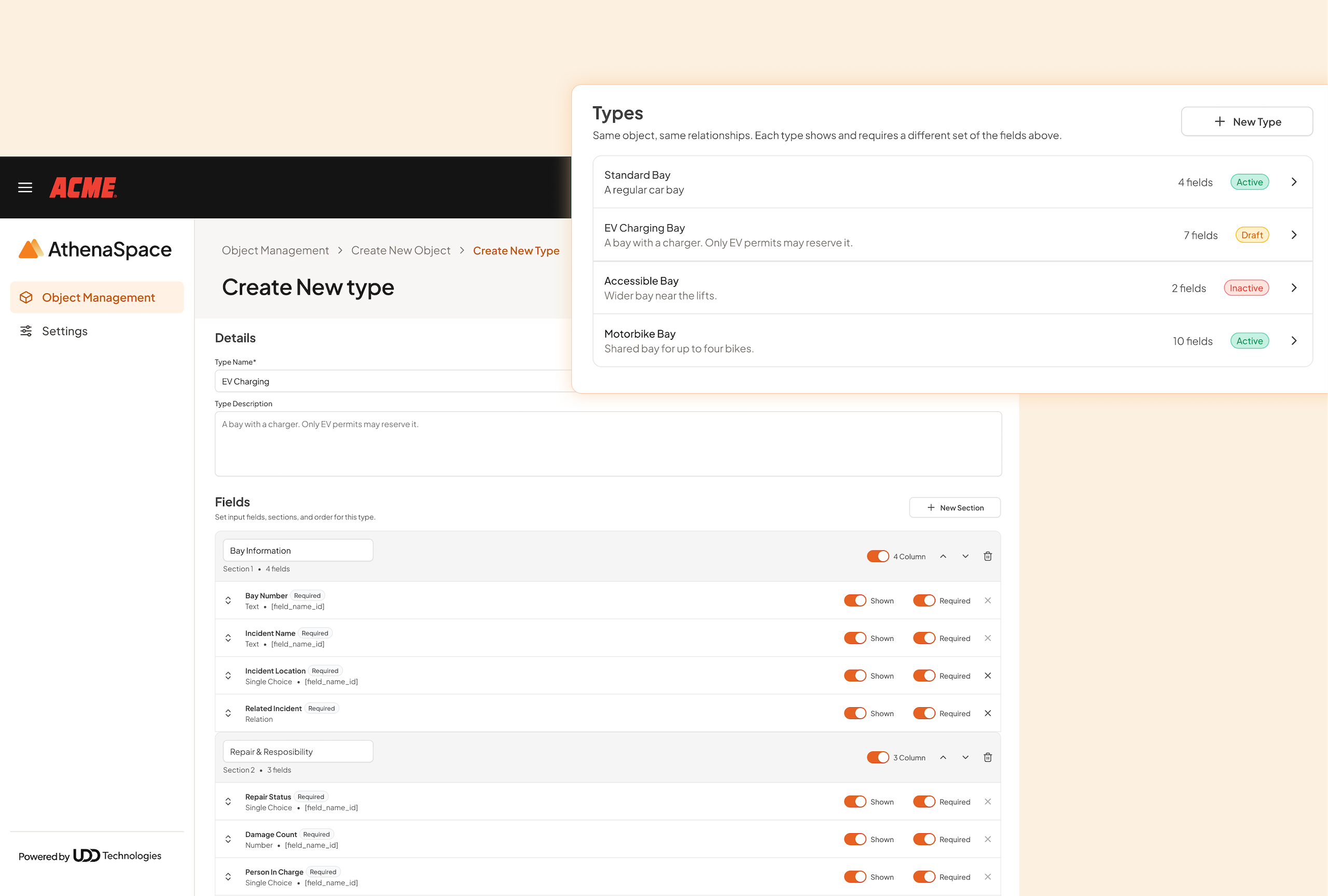
Create a type for each variant, such as Standard and EV charging. Choose which fields each type shows and which are required, then group the fields into sections so the form reads in a sensible order.
4. Add validation rules
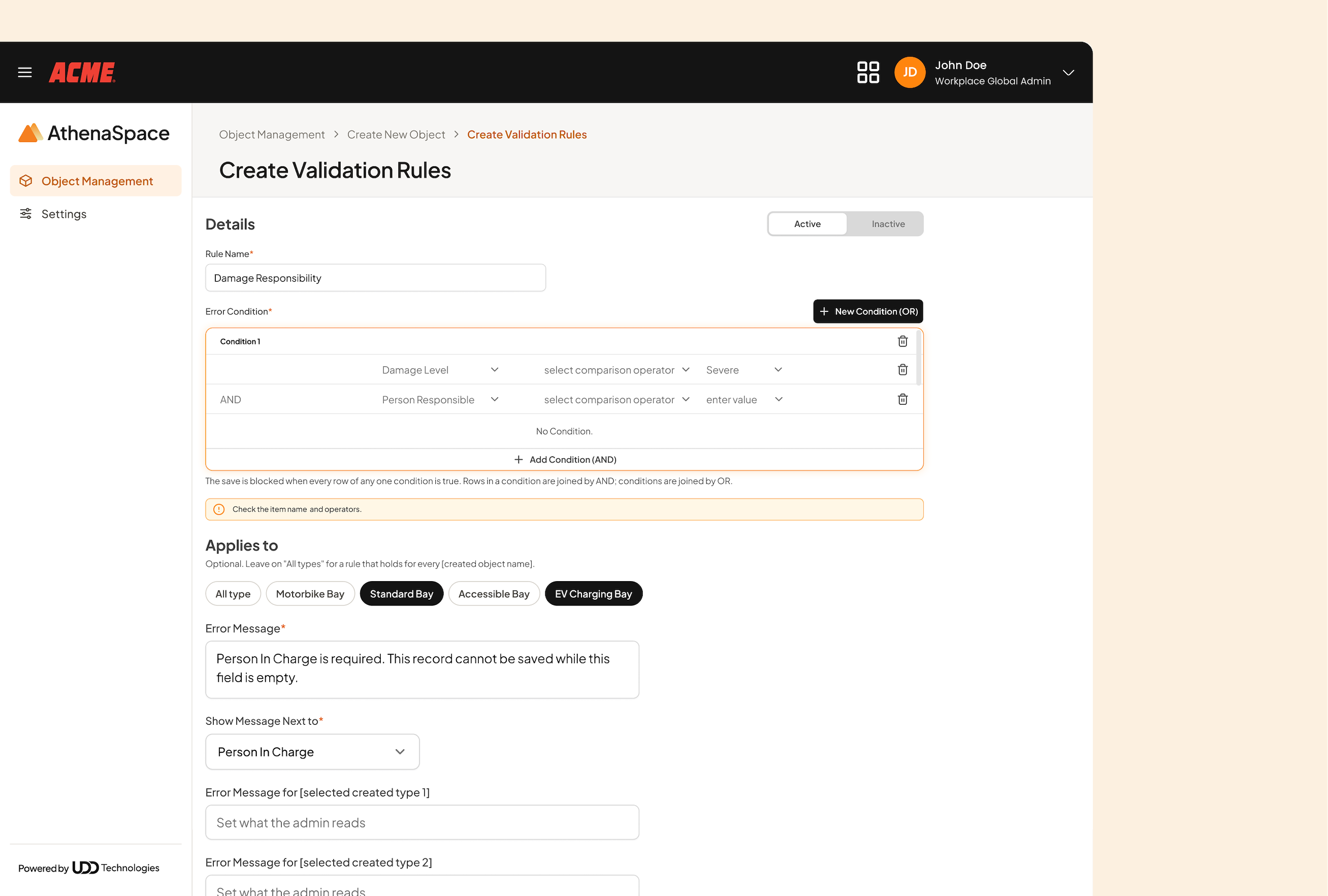
Say what a bad entry looks like. A rule has a name, one or more condition boxes, an error message and the field the message appears next to. For the Parking Bay, one rule blocks a Severe damage bay with no person responsible.
5. Choose your Sites
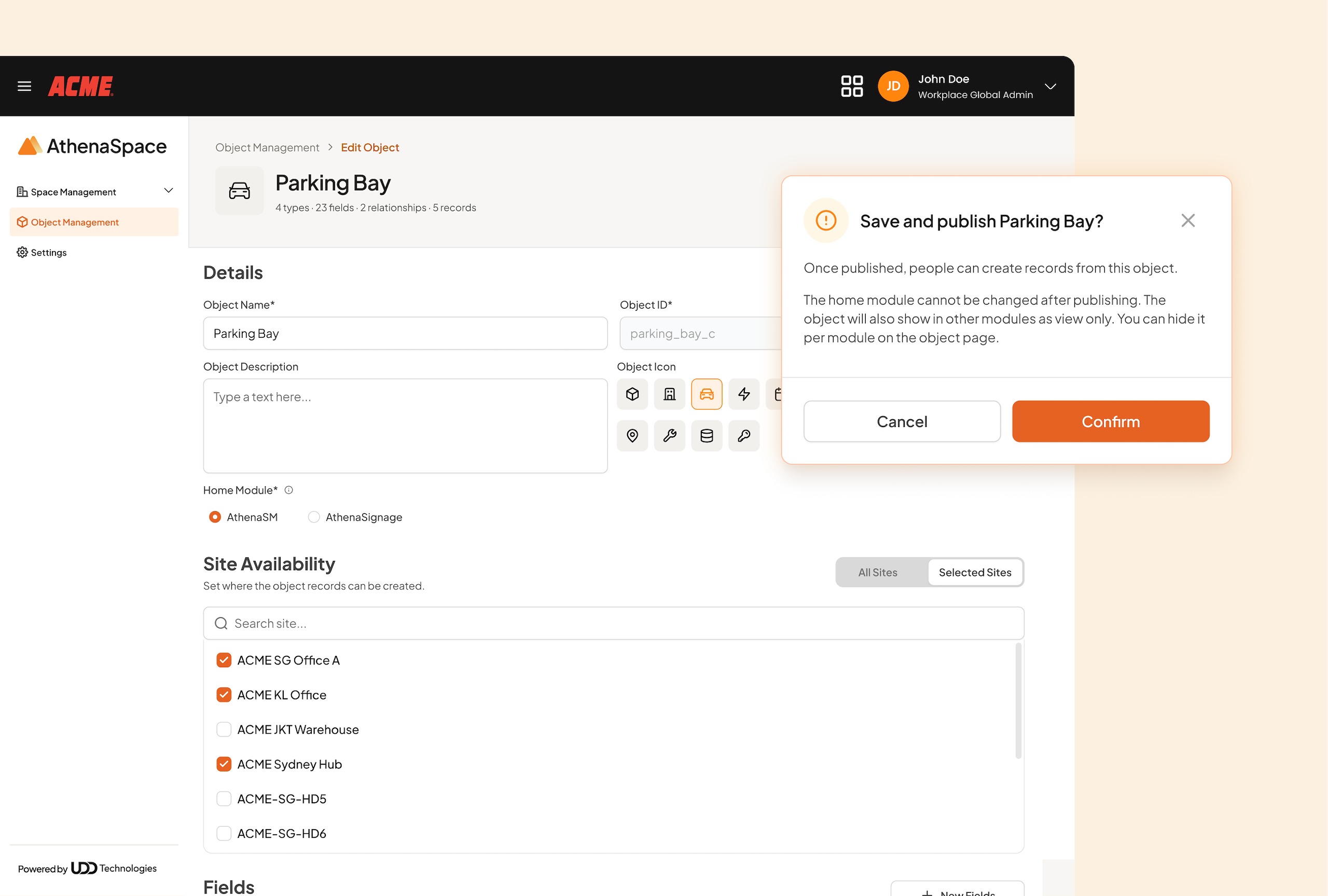
Make the object available at all Sites, which includes Sites you add later, or only at selected Sites. Records can be created only at the Sites you choose.
6. Publish and place it
Publishing needs a title field and one active type. Then add the object to a menu item in the module sidebar, where your team will find it. It appears in All objects straight away, and you can keep editing it afterwards, with changes applying immediately.

Worked example: a Parking Bay
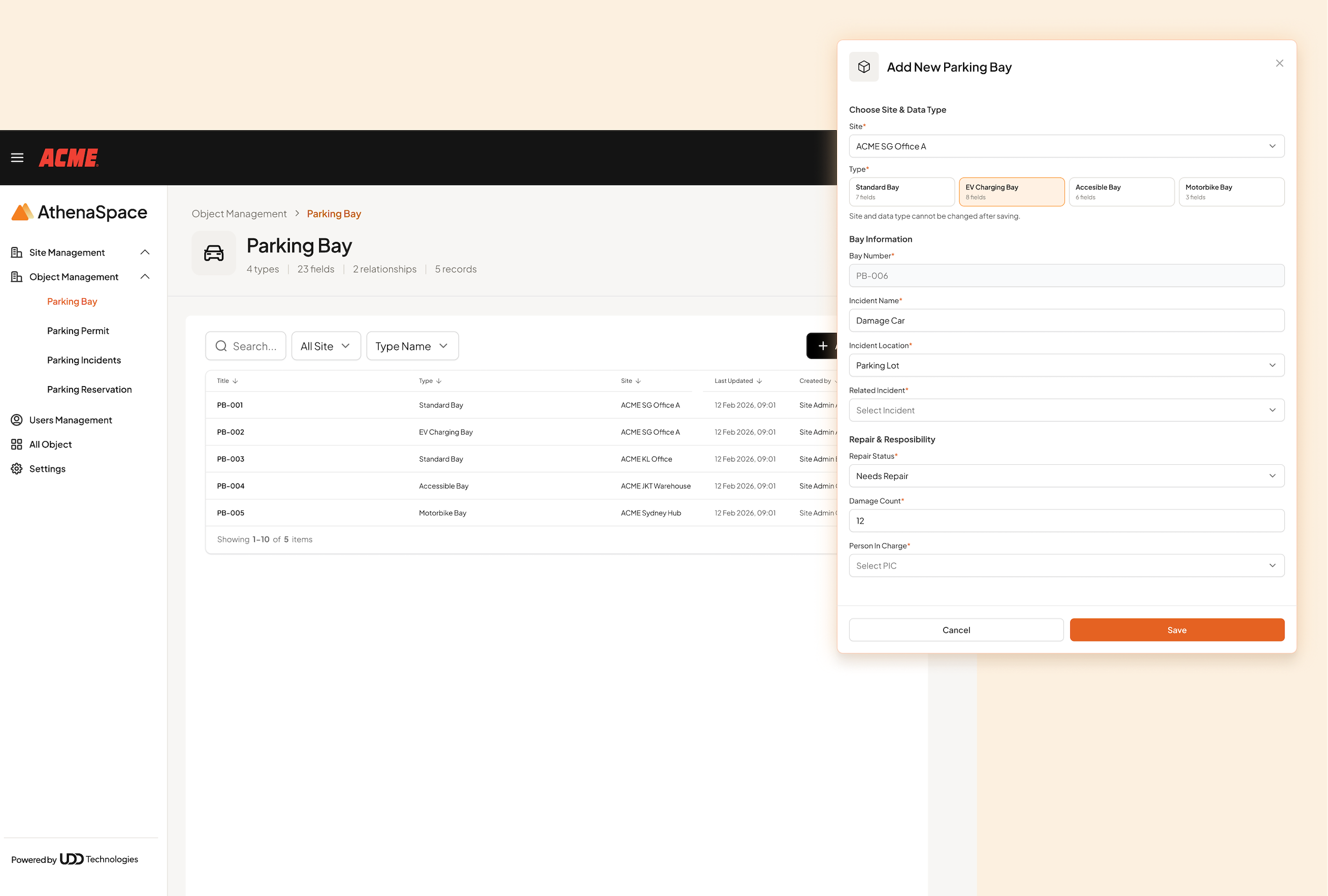
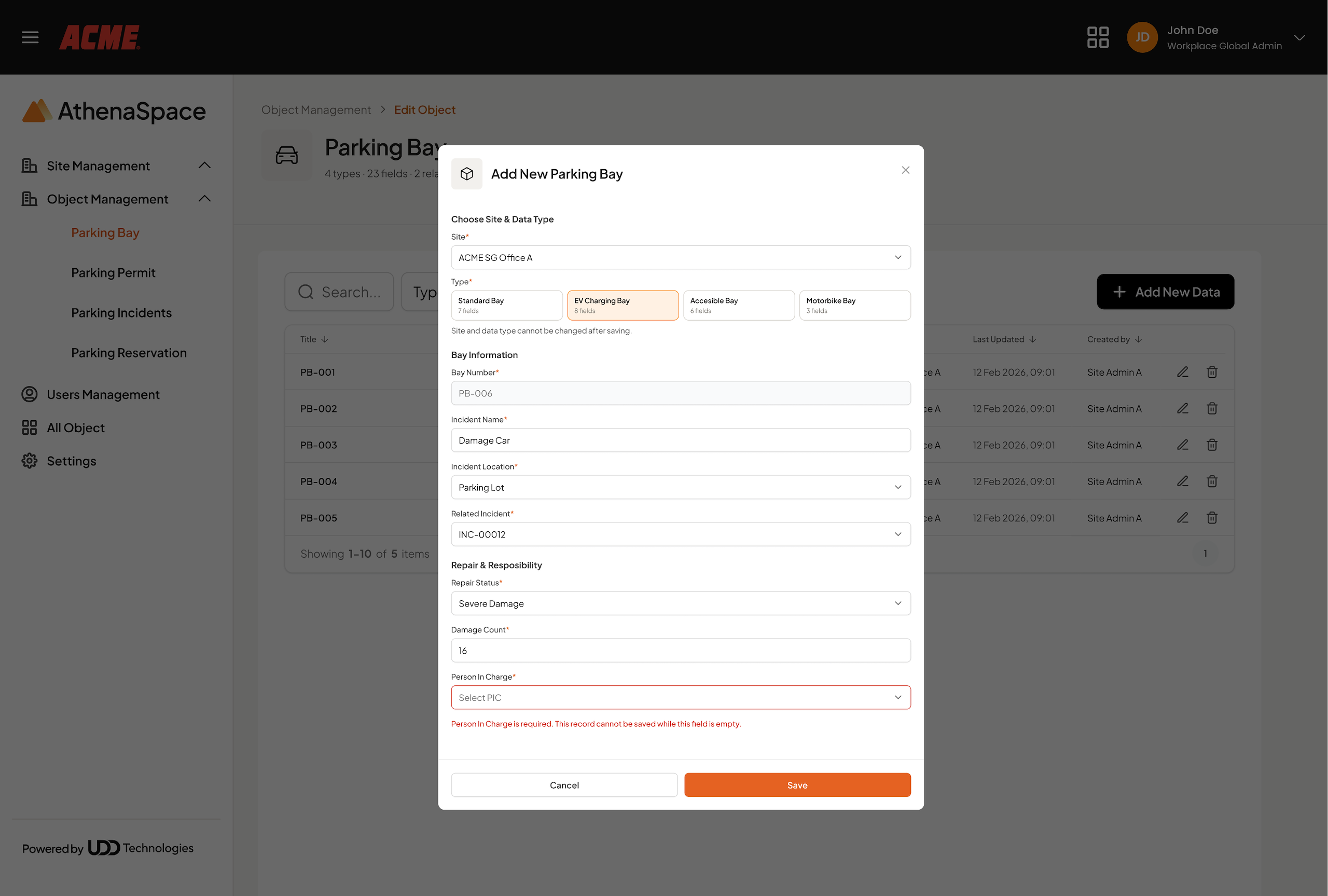
Here is the payoff, using an illustrative Parking Bay. A Workplace Global Admin builds the object once and makes it available at all Sites. From then on, every Site Admin logs bays on the same form: one record per bay, with required fields flagged the moment they are left empty. A Severe damage bay with no person responsible will not save, and a clear message says what to fix.
The admin built the form once. After that, every bay is a complete record, and the next step, getting a repair signed off, can run by itself with a workflow.
How do validation rules keep data clean?
A validation rule stops a record from saving when its data breaks a condition you set, and shows a clear message next to the field that needs fixing.
Conditions inside a box are joined with AND, and boxes are joined with OR. In the Parking Bay example, the box holds two conditions, a Severe damage status and a missing person responsible, and both must be true before the record is blocked.
How do you link records across objects and modules?
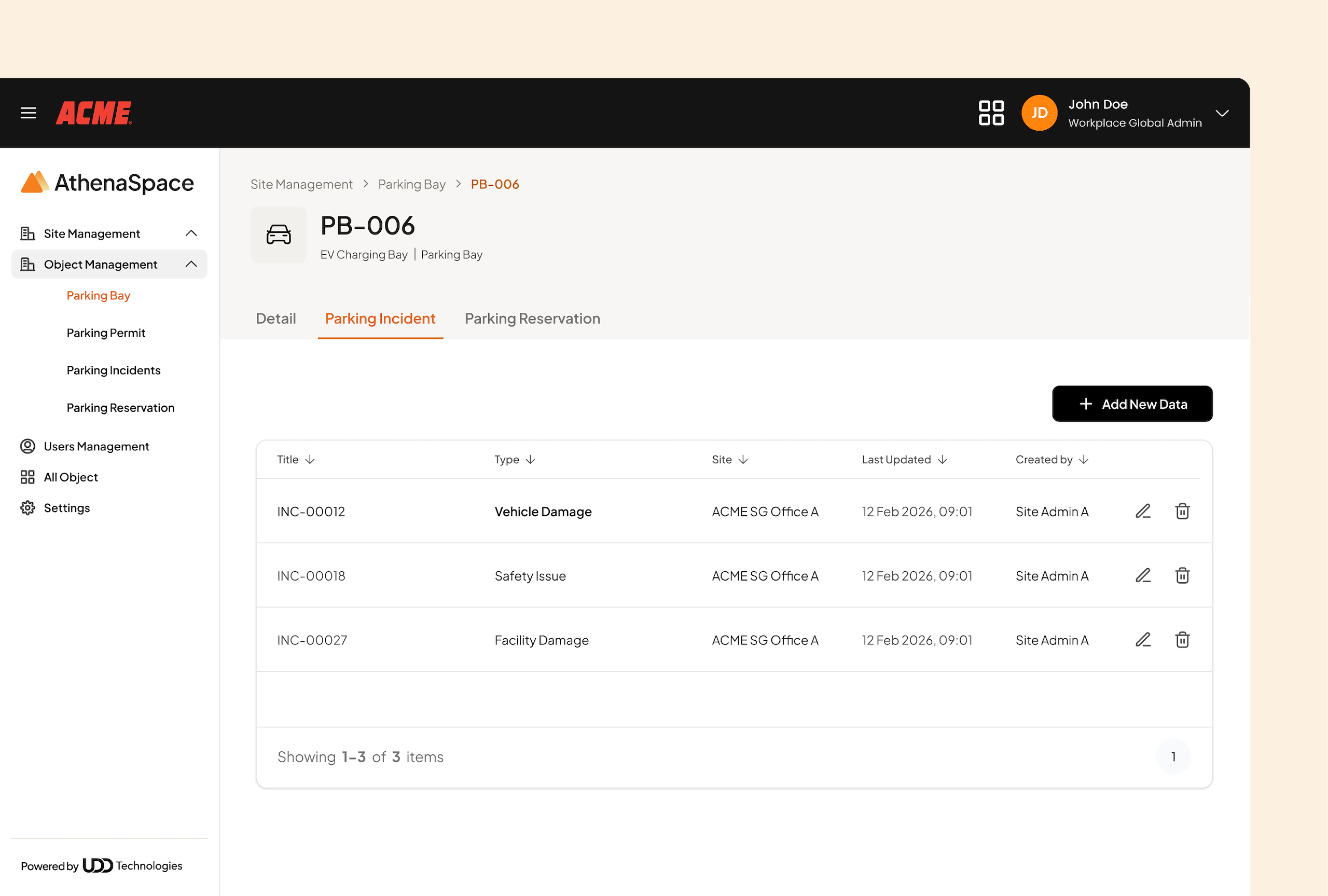
A Relation field links one record to another, such as an incident to the parking bay it happened in. You can link to custom objects, to Space, Desk and Area of Interest, and to AthenaSignage Display, Display Group, Playlist, Design and Media. The bay's page then lists every incident linked to it.
- Only sensible choices. A lookup filter limits what can be picked, such as bays whose status is not Out of service.
- Nothing is orphaned. A record that other records link to cannot be deleted, and the reason is shown. Standard objects such as Space and Desk can be linked to but not changed.
Which industries use custom objects?
Custom objects are not limited to offices. Whether you run a campus, a hospital, a store or a headquarters, any object you need can be modelled. Objects live in Space Management or AthenaSignage and can be linked across the two.
- Parking and facilities: log a broken parking slot, track bays and permits, and see every incident on the record of the bay it belongs to.
- Signage operations: link a Smart TV to a signage campaign, and connect records to AthenaSignage Displays, Playlists and Media.
- Maintenance requests: offer routine and urgent types, and add a rule so a severe fault cannot be saved without a person responsible.
- Permits and passes: issue and track permits and passes, with the checks your policy needs built into the form.
These are illustrations of what teams can build, not descriptions of specific customers.
How do custom objects work with a workflow engine?
A custom object stores the data. AthenaSpace Workflow Engine acts on it. In the Parking Bay example, a workflow can start when a bay's repair status changes, notify the site team and assign a repair task. Every form in an AthenaSpace workflow is an Object Manager object, so you build the form once and use it in both places. Read What Is a Workflow Engine? to see how.
Frequently asked questions
Do you need a developer to create a custom object?
No. With AthenaSpace Object Manager, [AW2.1]Workplace and Signage Global Admins can create and publish forms right from their browser, without coding or waiting on developers. Changes go live immediately, and your team can access the forms straight from the module sidebar.
Can one custom object be used at several sites?
Yes. Make the object available at all Sites, including Sites you add later, or at selected Sites only. Every record belongs to one Site. Workplace Site Admins see and edit only their assigned Sites, Global Admins see every Site, and lists can be filtered by Site.
What is the difference between a custom object and a spreadsheet?
A spreadsheet accepts anything typed into it. A custom object only accepts what its rules allow: required fields are flagged, choices come from a fixed list, and a validation rule can refuse a bad record with a clear message. Each saved entry is a record that can be linked, listed and used in a workflow.
Can you change an object after it is published?
Yes. Changes apply immediately. If a field gets deleted by mistake, you can restore it along with its values. Every change is recorded, so you can see what changed, who made it and when.
Can you change standard objects such as Space or Desk?
No. Standard objects such as Space and Desk can be viewed and linked to, but their fields and types stay as delivered. That protects the modules built on them, while your own custom objects can link to them freely.
Start with the list you keep in a spreadsheet
Pick the list your team keeps in a spreadsheet today, such as parking bays, passes or maintenance requests, and rebuild it as an object. The best form refuses a bad entry politely and says exactly what to fix. Track virtually anything, across one site or many.
Request a demo and we will model one of your own processes, from the fields to the validation rules, or talk to a partner near you.
See what your spaces are capable of.
Your building is already telling you what's wrong.
AthenaSpace gives you the intelligence layer to hear it — and act on it.